
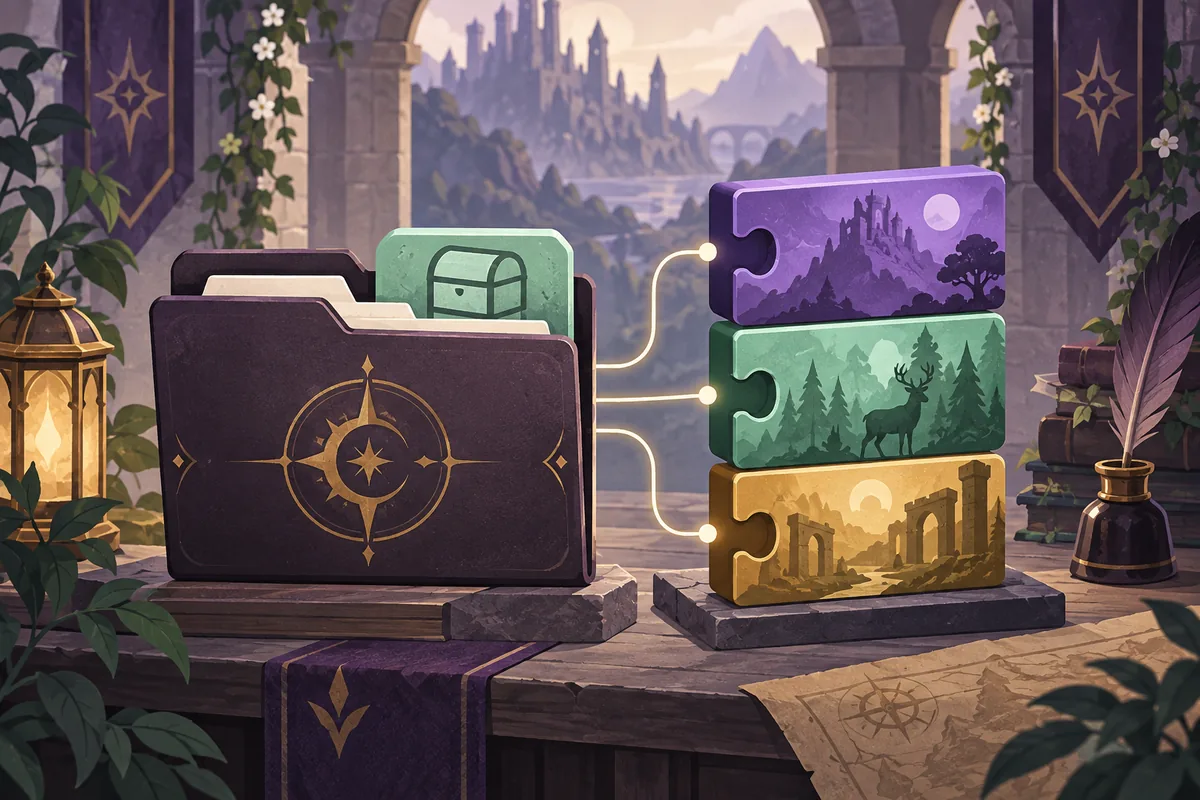
The Dusklight mod manager is best understood as the game's controlled mod browser and runtime switchboard, not as a separate downloader that makes every community file safe. The official Mod API describes .dusk bundles that may contain native code, scripts, resources, DVD overlay files, or texture replacements, with runtime enable, disable, and reload states. Use the manager to isolate a change, but still check the source, version, author, and compatibility boundary.
This guide focuses on the manager workflow: identifying a bundle, choosing a conservative load order, testing one variable, diagnosing conflicts, and restoring the baseline. It does not host a Dusklight mod manager download, anonymous mod archives, Nintendo game data, extracted commercial textures, or a claim that every .dusk package is safe. Use the official repository and the mod author's legitimate release notes for files and compatibility details.
- Official release checked
- v1.4.1 · June 16, 2026
- Bundle format
- .dusk archive
- Metadata to inspect
- id · name · version · author · description
- Runtime states
- Enable · disable · reload
- Recommended order
- Clean baseline · one mod · repeatable test
What the Dusklight mod manager actually does
The word manager can suggest a large third-party catalog, but the important feature is control. Dusklight's official Mod API separates mods into asset-only packages, native C++ mods, and Luau script mods. An asset-only package may replace disc overlays or textures; a native package can interoperate with game code and hooks; a script package uses the Luau runtime with a narrower access surface. The manager needs to present those packages as distinct changes, because the failure modes are not identical.
- Identify the packageRead the manager entry and the bundle's mod.json so the name, id, version, and author are recorded.
- Classify its scopeDecide whether it is asset-only, native, or script-based before comparing it with other packages.
- Keep a baselineSave a clean launch result and a backup before enabling the first package.
Read a .dusk package before enabling it
A .dusk file is a bundle, commonly represented as a zip archive, that can contain several kinds of content. Do not judge it only by its file name or a thumbnail. Look for the metadata file, read the description, and compare the stated version with the version of Dusklight you are running. The official repository's template uses a stable id and descriptive fields, while official demo packages show that a mod can be a focused test of graphics, audio, or a runtime service.
The id is useful when two packages have similar display names. The version tells you which package revision you tested, the author points to support notes, and the description explains whether the bundle changes visuals, sounds, scripts, menus, or another service. Missing or contradictory metadata is a reason to keep the package out of the active test until its source is clear. Keep the archive outside the active data folder and record its source and test date.
| Field or clue | What it tells you | Safe action |
|---|---|---|
| id | The package's stable identity | Record it before comparing two similarly named entries |
| version | The package revision you tested | Compare it with the author's compatibility notes |
| author | The person or team responsible for the package | Find the legitimate source and update history |
| description | The intended feature and likely scope | Check that the behavior matches what the manager shows |
Build a conservative mod load order
Load order is a practical way to describe which package gets a chance to provide or replace a resource when more than one mod touches the same area. The exact rules depend on the current Dusklight implementation and the package type, so do not invent a universal priority number from a forum comment. Instead, start with the package whose author documents a dependency or ordering requirement, then use the manager's displayed order and the official project notes as your working evidence.
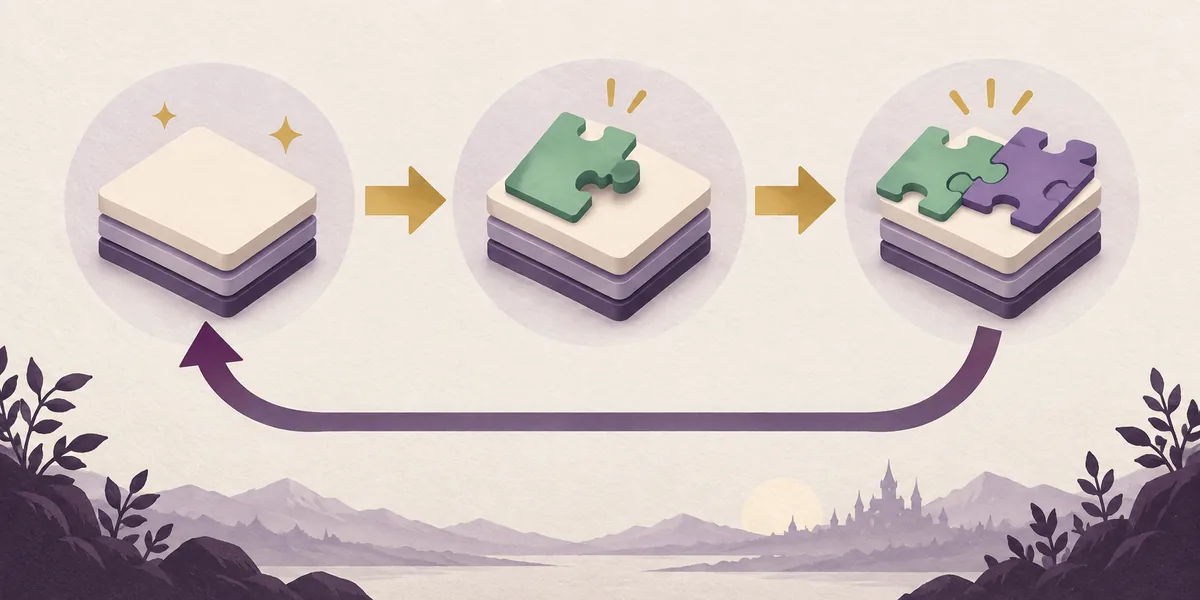
Keep overlapping packages apart during the first test. Two texture replacements, two event hooks, or a visual pack combined with an experimental renderer can look random even when each works alone. A stable sequence is simple: back up, enable the smallest package, run a repeatable check, and add the next package only after the first result is known.
- Start with zeroLaunch the clean build and record a menu, gameplay, save, and reload result.
- Enable the smallest changeChoose one package with a clear source and a narrow documented purpose.
- Check the orderWrite down the manager order and any documented dependency before adding another package.
- Rollback the newest changeDisable or quarantine the last package when a failure first appears.
Test the manager with one change at a time
A successful launch is not a complete compatibility test. Begin with the title screen and menus, then visit a repeatable gameplay scene that exercises the content the mod is supposed to affect. Check visual assets, sound, input, a save, and a reload when the package claims to touch those areas. The goal is not to prove that a package works everywhere; it is to establish whether the current package, current build, and current platform behave consistently in your setup.
Use the same graphics backend, resolution, controller, game data, and scene for the before and after comparison. If you change the driver, input mapping, game data, and mod list together, the manager cannot tell you which variable caused the failure. Keep a short log with the package id, version, active order, application release, platform, and first visible symptom.
- Check the title screen and menus for missing interface assets.
- Load one repeatable scene and perform the same action before and after enabling the mod.
- Record the first failure and last change before resetting the setup.
Troubleshoot conflicts without losing the baseline
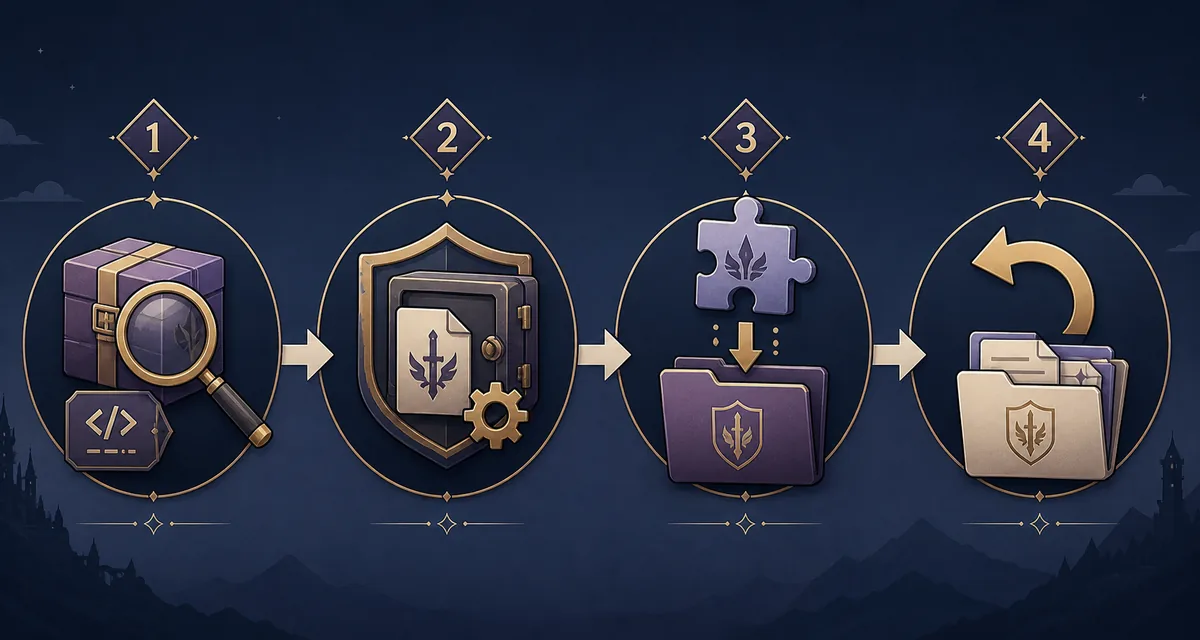
If the manager shows an error, a missing icon, a crash, a black screen, or a package that does nothing, resist the urge to change five settings at once. Disable the newest mod first and repeat the same test. If the clean build works, the result points toward a package, order, or compatibility issue. If the clean build also fails, the cause may be the application release, game data, driver, input layer, permissions, or another system change that is unrelated to the manager.
A package that worked on one release may fail after an update. The official v1.4.1 release notes mention fixes for texture replacement load ordering and missing interface textures from the v1.4.0 period, as well as several platform and backend fixes. Compare the application version with the package's supported range before declaring a manager bug. Keep old archives and logs, but do not keep an incompatible native library active because it worked once.
| Symptom | First check | Recovery |
|---|---|---|
| The entry appears but nothing changes | Wrong bundle, disabled state, or unsupported feature | Disable it, re-read the metadata, and retest the clean baseline |
| Missing textures or UI | Overlapping packs, load order, version, or incomplete extraction | Remove the newest pack and compare with the documented release |
| Crash or black screen | Native package, backend, duplicate files, or stale configuration | Quarantine the package and restore the last known-good data folder |
| Mobile bundle is invisible | Selected data folder or storage permission | Use the platform's current data-folder flow and copy one bundle again |
| Update breaks an old package | Package targets an earlier application or API | Keep the archive, check support notes, and wait for a compatible build |
Remove a mod and report a reproducible result
To remove a package safely, close Dusklight first, disable it in the manager if the current build supports that state, and move the archive or documented package folder into a dated quarantine location. Moving is preferable to immediate deletion because it preserves the exact evidence you tested. Launch the clean setup, repeat the same scene and save check, and confirm whether the original symptom is gone.
A useful issue report names the official release, platform and architecture, package id, package version, manager state, load order, game-data boundary, first failing scene, and clean-baseline result. Include non-sensitive logs and a link to the legitimate package source. Never upload copyrighted game data or an archive that you do not have permission to redistribute just to demonstrate a bug.
- Close the gameDo not move or replace a bundle while Dusklight is still reading it.
- Quarantine the packageMove the tested archive or folder to a dated location instead of deleting it first.
- Verify the baselineRun the same menu, scene, save, and reload check with the package disabled.
- Write the evidenceReport the package id, version, order, first failure, and clean comparison without uploading game data.
Dusklight mod manager FAQ
Is the Dusklight mod manager a separate download?
Treat it as the game's mod browser and runtime control surface, not a separate third-party downloader. The official Mod API documents .dusk bundles and enable, disable, and reload states. Use legitimate sources; this page does not mirror a manager binary or game data.
How should I choose a mod load order?
Use the manager's displayed order together with the author's documented dependency or conflict notes. Begin with a clean baseline, enable one package, test it, and add another only after the first result is repeatable. Do not assume a universal priority rule for every package type.
Why does a mod appear enabled but do nothing?
Check that the bundle is the one you intended to test, its state was saved, its files are in the selected data location, its version supports your Dusklight release, and another package is not overriding the same resources. Disable it and retest the clean baseline before changing unrelated settings.
Sources checked on September 15, 2026 official Dusklight Mod API, official template mod metadata, official v1.4.1 release notes, Dusklight repository.