
How to update Dusklight safely starts with a backup, not with deleting the old folder. Close the application, copy your saves and settings, check the official TwilitRealm release page, and compare the package with your operating system and processor architecture. Keep the old build available until the new one launches and loads a short test scene.
The official release checked on August 5, 2026 is Dusklight v1.4.1, published June 16, 2026. That is a verification result for this guide, not a promise that the version will remain current. When you update later, use the official release page as the authority and do not trust an anonymous mirror, repack, or file that claims to include Twilight Princess.
An update changes the application files, while saves, settings, user-provided game data, and mods may live elsewhere. Keeping those layers separate makes a failed update easier to diagnose and a rollback less destructive. If you use Steam Deck, Android, or iOS, follow the platform-specific cautions below because package permissions and signing rules can change what a safe rollback looks like.
- Verified release
- Dusklight v1.4.1
- Release check
- August 5, 2026
- Before replacing files
- Back up saves and settings
- Best rollback
- Keep the previous build intact
- Game data
- Use your own supported dump
Check the official Dusklight release before you update
Start with the release source, not with a search result or a download button that hides its destination. The official GitHub release checked for this page is v1.4.1 and lists separate packages for Windows, Linux, macOS, Android, and iOS. Match the filename, package type, and architecture to the device you are actually updating.
A version number alone is not enough. Read the release notes for changes that may affect graphics backends, input, texture replacement, file locations, or mobile signing. If a new release is newer than the version described in an older guide, update the version facts and platform instructions before copying any files. This site does not call an application current without a dated first-party check.
Do not combine a new application with a random game file, old configuration folder, or unverified mod archive. Dusklight is the open-source application; Twilight Princess game data remains the user's responsibility. A clean application update should be tested with the same supported game data before you introduce another variable.
- Open the first-party releaseUse the official TwilitRealm site or GitHub release page and record the tag and publication date.
- Match the packageChoose Windows x86_64 or ARM64, Linux x86_64 or ARM64, the correct Mac architecture, Android ARM64, or the supported iOS package.
- Compare release notesLook for graphics, input, texture, save, storage, and signing changes that affect your current setup.
- Preserve a known-good copyDo not overwrite the old application until the new package has passed the first launch test.
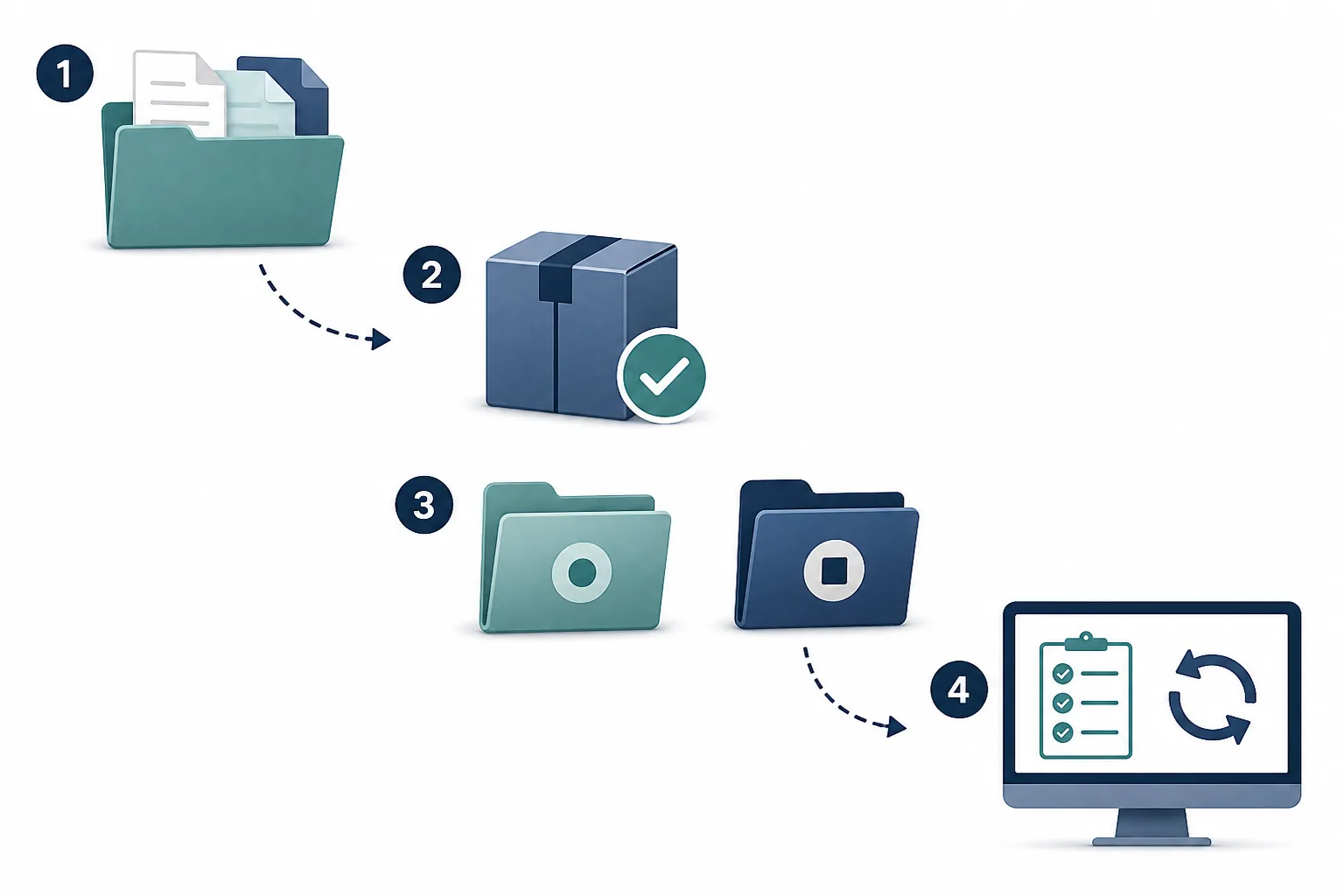
Back up saves, settings, and the current build
Close Dusklight before copying user data. Back up the complete data folder when possible rather than selecting only the file that looks like a save. The desktop locations documented by the project are under %APPDATA%/TwilitRealm/Dusklight on Windows, ~/Library/Application Support/TwilitRealm/Dusklight on macOS, and ~/.local/share/TwilitRealm/Dusklight on Linux. Mobile storage depends on the operating system and installation method.
Give the backup a date and include the version, platform, and region in the name. Keep it outside the active application folder so extracting a new archive or uninstalling an app cannot remove the only copy. If you transfer a save between Dusklight and Dolphin, use the dedicated save guide and confirm the region and format before replacing anything.
A backup is useful only if you can identify what it contains. Check that the destination has real files, keep the original untouched, and write down the restore location. Do not clear Android storage, delete an iOS app, or remove a working desktop folder as the first response to an update problem.
- Back up saves and configuration after closing Dusklight.
- Keep the backup outside the active release folder.
- Record the version, platform, graphics backend, and game region.
- Preserve the previous application package or folder until testing is complete.
- Check that the backup contains files and is readable from the destination.
- Do not mix a save backup with ROM, ISO, RVZ, key, or other copyrighted game data downloads.
How to update Dusklight on each platform
The safest platform update is an install beside the old build, followed by a clean first launch. Desktop archives should be extracted into a new folder so a missing file or changed DLL does not get confused with a stale file left in place. Once the new build works, you can decide whether the old folder should be archived or removed.
On Android, install the verified ARM64 APK from the same trusted release source. Android may show an unknown-source warning because the package is distributed outside Google Play. Do not uninstall the working package just to bypass a signing or package error; preserve app data and investigate the source, architecture, and package identity first.
On iOS, update through the same supported signing workflow you used for the existing app, such as the project's documented AltStore or iloader path. A signing refresh is different from replacing a desktop ZIP. Keep the previous working app data and do not promise a universal restore path when the operating system or sideloading tool controls the container.
For Steam Deck, use the Linux x86_64 AppImage, give the new file executable permission, and keep the known-good AppImage until the new one launches from the same storage location. Use the Linux guide for noexec storage and Steam shortcut details; this update page only covers the release-change workflow.
| Platform | Update action | Keep in mind |
|---|---|---|
| Windows | Download the matching ZIP, extract to a new folder, and test before replacing the old folder. | Confirm x86_64 or ARM64 and keep the archive. |
| Linux / Steam Deck | Use the matching AppImage, run chmod +x, and test it from the same storage path. | x86_64 is the normal Steam Deck architecture; avoid noexec storage. |
| macOS | Choose Apple silicon or Intel, extract a new copy, and review the security prompt. | Do not mix architecture folders or delete the working app first. |
| Android | Install the verified ARM64 APK over the existing package when signing allows. | Do not clear storage or uninstall first when saves are not backed up. |
| iOS | Refresh or replace the app through the same supported signing method. | Signing expiry and app-container access can affect rollback. |
Test the new version and roll back cleanly
The first launch is a test, not the finish line. Start without texture packs, custom overrides, controller wrappers, or inherited experimental settings. Confirm that Dusklight opens, recognizes the supported game data, reaches the menu, accepts one input device, loads a repeatable scene, and can save and close normally.
Compare the same scene and graphics backend you recorded before the update. A change in frame pacing, missing interface textures, input focus, or file discovery is easier to classify when the computer, game data, settings, and test scene are unchanged. If the new build works cleanly, add modifications one at a time and keep notes.
If the update fails, do not delete the backup while troubleshooting. Close the program, preserve the error and version details, restore the previous application folder or AppImage, and test the same user data. A rollback tells you whether the change belongs to the new application, a driver, a platform permission, or a third-party file.
After a successful rollback or update, document the working version and the reason for the change. Report reproducible clean-release problems to the official project with platform, architecture, graphics backend, exact steps, and concise logs. Never upload your copyrighted game data or personal save files just to make a bug report complete.
- Launch cleanUse the new application with no mods or texture replacements and the same supported game data.
- Check the essentialsTest menus, controller input, a repeatable gameplay scene, save, load, and normal exit.
- Add changes one at a timeRestore settings and packs individually so a new failure has a clear cause.
- Restore the old buildIf needed, close the app and return to the preserved release without deleting the data backup.
- Record the resultKeep the version, platform, backend, error, and successful fix for the next update.
How to update Dusklight FAQ
How often should I update Dusklight?
Update when the official release fixes a problem you have, adds a platform feature you need, or is required by a compatible mod or guide. Check the first-party release notes instead of updating on an invented schedule, and keep a working backup before every change.
Is v1.4.1 still the latest Dusklight version?
The official TwilitRealm GitHub release check recorded on August 5, 2026 found v1.4.1, published June 16, 2026. Release status can change after publication, so use the linked official release page for a future check rather than treating this dated result as permanent.
Will updating Dusklight delete my saves?
Replacing an application package should not be treated as a save migration, but storage and uninstall behavior vary by platform. Close the app and copy the complete user-data folder first. Do not uninstall, clear mobile storage, or delete the old desktop folder until the backup is verified.
How do I update Dusklight on Steam Deck?
Download the Linux x86_64 AppImage from the verified release, make the new file executable, test it beside the old AppImage, and update the Steam shortcut only after the launch works. Use the Linux and Steam Deck guide for noexec storage and shortcut troubleshooting.
Can I update Dusklight with mods installed?
You can, but a clean test is easier to diagnose. Back up the current setup, launch the new build without texture packs or overrides, then restore one modification at a time. A mod written for an older Dusk or Dusklight release may need its own compatibility check.
What should I do if the new Dusklight build fails?
Keep the error, version, platform, and settings notes; do not delete the backup. Restore the previous application build, test the same game data, and compare a clean setup. If the issue reproduces on a clean current release, prepare a concise report for the official project.
Sources checked August 5, 2026: TwilitRealm official site, TwilitRealm installation guide, Dusklight v1.4.1 release, Dusklight release list.