
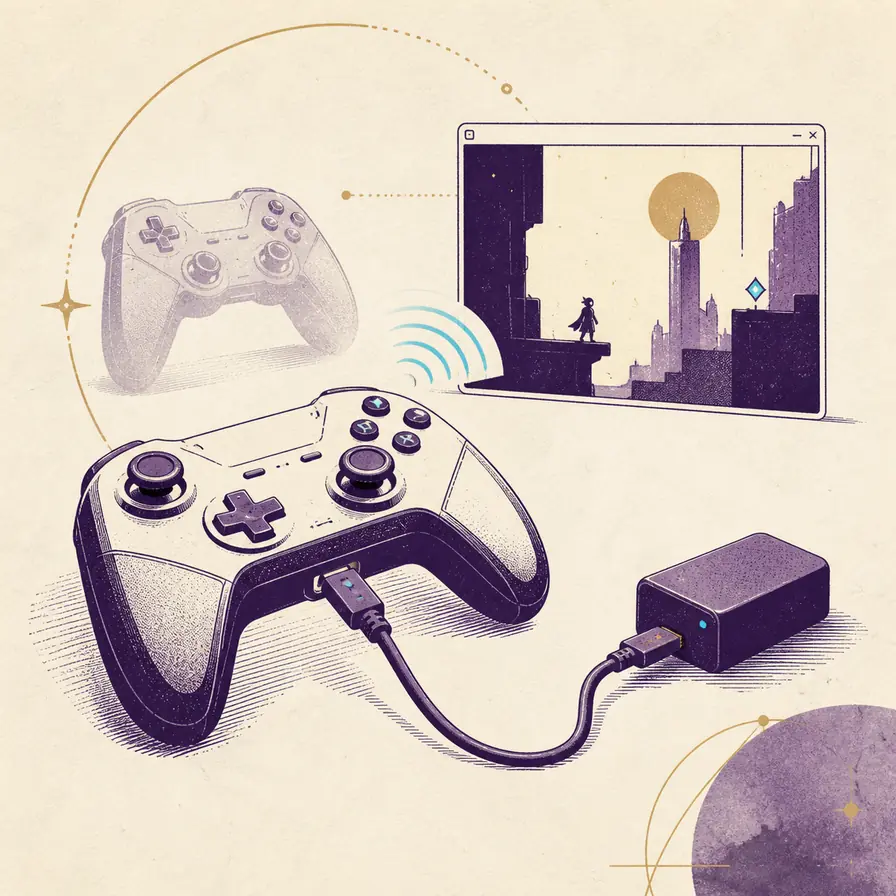
Connect the controller by USB for the first test, confirm that Windows, Linux, macOS, Android, or your Steam Deck can see it, then close extra remappers and bind the device to Port 1 inside Dusklight. Test the D-pad, both sticks, face buttons, Start, shoulders, and triggers before adding mods or texture packs.
If Dusklight cannot recognise the controller, separate the problem into three layers: the operating system, an input wrapper such as Steam Input, and the game configuration. A controller that is missing from the system cannot be fixed by changing an in-game button map. A controller that appears twice can fail because two layers are translating the same input.
Controller setup does not require deleting saves or downloading Twilight Princess data. Keep your application, user data, and your own supported game data separate while testing. When a clean wired test works, add Bluetooth, a different mapping mode, or a wrapper one change at a time.
- Best first test
- USB cable
- Player slot
- Port 1
- Input layers
- Use one at a time
- Clean baseline
- No mods or wrappers
- Game data
- Not included
Connect the controller and verify the device layer
Start with a direct USB connection and close Dusklight before pairing or switching modes. A cable removes battery, wireless pairing, and sleep-state variables. If the controller has a physical XInput, DInput, or platform mode switch, record the mode you chose instead of changing it during the first test.
Before opening the game, use the operating system device panel or a trusted gamepad tester to confirm that buttons and both sticks produce input. This check tells you whether the failure belongs to the device layer or to Dusklight. Bluetooth is useful after the wired path works, but it is a poor first diagnostic because a paired device may still be asleep, connected to another host, or exposed under a different profile.
Use only one translation layer. If Steam Input, a controller manufacturer utility, a desktop remapper, and Dusklight all process the same device, the result may be duplicate buttons, a drifting stick, swapped face buttons, or no visible input. Disable the extra layer for the clean baseline and restore it only when you know why you need it.
- Connect by USBUse a known data cable and wait for the operating system to finish detecting the device.
- Check the deviceConfirm the D-pad, sticks, face buttons, shoulders, and triggers respond outside the game.
- Choose one modeUse the controller's native input mode or one wrapper, not several layers at once.
- Open DusklightLaunch a clean setup only after the device appears consistently at the system level.
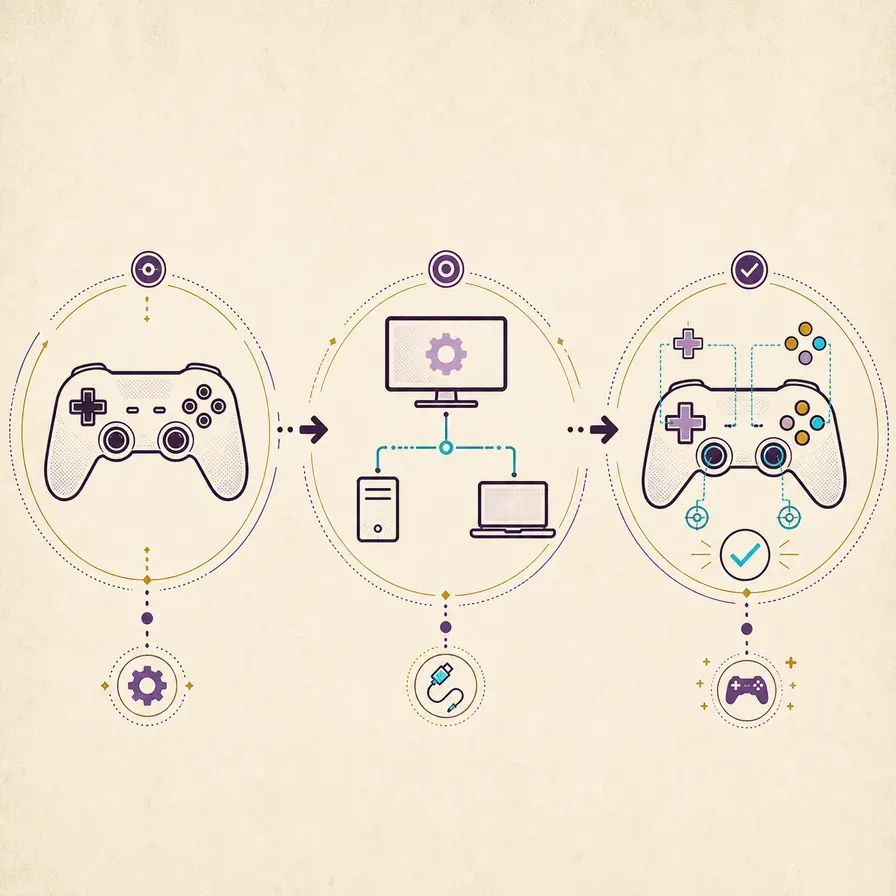
Map Port 1 and test the important buttons first
For a single-player setup, bind the working controller to Port 1 and clear stale bindings before assigning new ones. Map the D-pad and both sticks first, then the face buttons, Start, shoulders, and triggers. Save the profile only after every control has a distinct response and the right stick does not move the wrong axis.
Controller labels are not universal. An Xbox-style layout, a PlayStation-style layout, and a Switch-style layout can expose different letters or glyphs even when the physical positions are similar. Trust the input shown by the mapping screen and the action performed in a repeatable test scene, not a label copied from another guide.
Switch Pro, DualShock, and 8BitDo devices may work through different native or translated modes depending on the host. If a device is visible but the face buttons are reversed, stop and change one layer or one mode at a time. Do not compensate by creating a second conflicting profile.
- Bind one physical controller to Port 1 before testing a second device.
- Check neutral sticks and trigger ranges before adjusting a dead zone.
- Record the working mode so an update or Bluetooth re-pair can be compared.
- If a mapping works only with a wrapper, document that dependency instead of hiding it.
| Device example | First path | What to watch |
|---|---|---|
| Xbox or XInput pad | Try the native XInput path first. | Avoid a second remapper that exposes the same pad again. |
| Switch Pro | Test USB first, then pair Bluetooth after the wired profile works. | Steam Input or the host may change the displayed layout. |
| DualShock or DInput pad | Confirm the device name and use one translation layer if needed. | Check for duplicate devices and swapped face buttons. |
| 8BitDo pad | Select one deliberate mode and retest after changing it. | The same hardware can present different protocols. |
Fix a controller that Dusklight cannot recognise
If the controller is absent from the operating system, re-pair it, try another data cable or USB port, wake it from sleep, and close any other host that may have captured the wireless connection. If the operating system sees it but Dusklight does not, close the game, remove duplicate wrappers, and repeat the clean Port 1 test.
If only some buttons work, check the selected input mode, the device profile, and whether a second layer is translating axes. A gyro or motion sensor can remain unavailable even when ordinary buttons work; treat motion input as an optional device capability rather than proof that the whole controller is broken.
When a Steam Deck or desktop shortcut launches a different environment than the one you tested, compare the same executable, controller mode, and Steam Input setting. After an application update, restore the simplest working profile first, then add Bluetooth, custom mappings, mods, and texture packs one at a time.
- No device appearsCheck cable, pairing, battery, USB port, sleep state, and whether another host still owns the connection.
- Device appears twiceDisable the extra wrapper or virtual pad and leave one input path active.
- Buttons are swappedChange the device mode or mapping profile once, then test the same buttons again.
- Only gyro failsKeep the ordinary buttons working and treat motion support as a separate capability.
- Update broke inputTest the new build cleanly, compare the old profile, and keep the previous build for rollback.
Run a clean input test before restoring mods
A reliable controller test uses the same application build, game data, scene, and graphics settings before and after a change. Start without texture packs, custom overrides, virtual controllers, or experimental mappings. Confirm that Dusklight reaches the menu, accepts Port 1 input, loads a short repeatable scene, and exits normally.
Once the baseline works, restore one variable at a time. Test Bluetooth separately from a new mapping, and test a mod separately from Steam Input. If a failure returns, the last change is a useful lead. Keep notes about the platform, controller mode, wrapper, version, and exact symptom before reporting a reproducible issue to the official project.
If you need to protect files while updating or troubleshooting, use the save backup guide rather than deleting application data. The controller page is about input discovery and mapping; it does not host or provide copyrighted Twilight Princess game data.
- Test menu navigation, both sticks, face buttons, shoulders, triggers, pause, and normal exit.
- Repeat the same scene after every change so a fix is measurable.
- Keep a working profile and the previous application build until the new setup is stable.
- Report only the platform, version, input mode, steps, and concise logs; never upload personal saves or game data.
Dusklight controller FAQ
Why cannot Dusklight recognise my controller?
First check whether the operating system sees the controller. Then use a USB baseline, disable duplicate wrappers, and bind one device to Port 1. If it appears at the system level but not in Dusklight, compare the input mode and remove the extra virtual-device layer before changing the mapping.
How do I connect a controller to Twilight Princess in Dusklight?
Connect the gamepad, verify it outside the game, open Dusklight, bind it to Port 1, and test the D-pad, sticks, face buttons, shoulders, triggers, and pause action in a repeatable scene. Start without mods or texture packs so an input failure has a clear cause.
Can I use a Switch Pro controller with Dusklight?
It may work through USB or Bluetooth depending on the host and the mode exposed by the device. Test USB first, confirm the operating system sees it, use one input layer, and then check the displayed button layout after pairing. Do not assume a Switch-style label matches an Xbox-style guide.
What should I do when only some controller buttons work?
Check the selected controller mode, the Port 1 profile, duplicate virtual devices, and whether axes were assigned to the wrong controls. Change one setting at a time. A gyro or motion sensor can fail independently while ordinary buttons continue to work.
Why did controller input stop after a Dusklight update?
Repeat a clean test with the new build, the same game data, and no wrappers or mods. Compare the stored mapping and input mode with the previous working build, and keep the old application available for rollback until the new profile is stable.
Can I use keyboard and mouse instead of a controller?
Use the input method that your platform and current build expose reliably. If you switch from a gamepad to keyboard and mouse, clear or separate the old Port 1 profile so two devices do not send overlapping actions during testing.
Sources checked August 6, 2026: TwilitRealm official site, Dusklight GitHub repository, Dusklight issue tracker, TwilitRealm installation guide.